Question types ·
Documentation
Play attached audio and let the participant select one or several answers.
Configure
- Add Music to a Standard or Music quiz.
- Attach exactly one audio file in MP3, OGG, OPUS or WAV format.
- Enter choices and mark accepted responses.
- Enable multiple selection if needed.
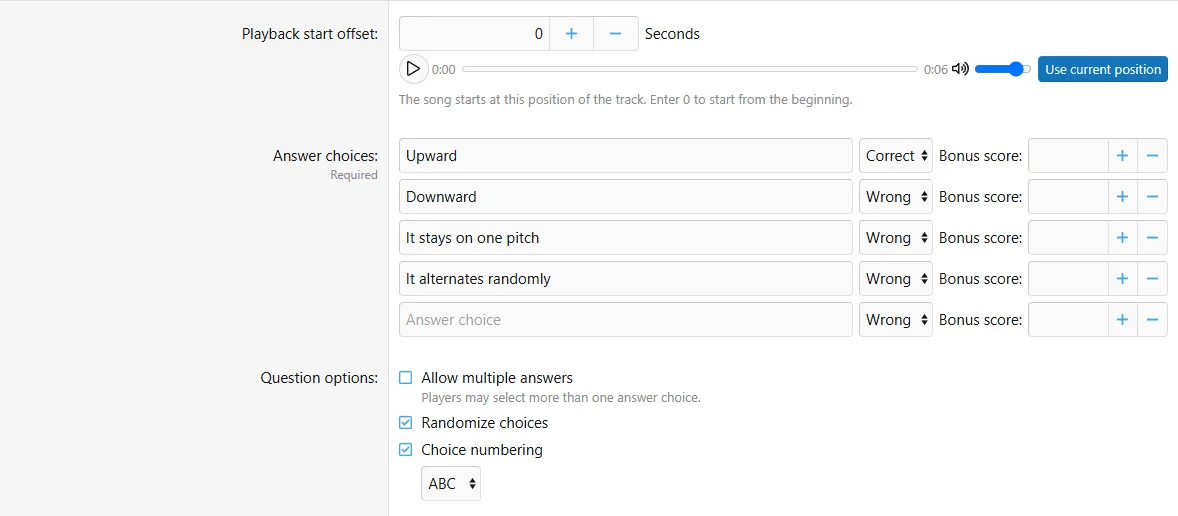
- Set the start offset and preview playback before saving.
Fields
| Field | Purpose |
|---|
| Audio attachment | Exactly one supported file |
| Multiple answers | Single or multiple selection |
| Answer choices | Candidate responses and their accepted status |
| Playback start offset | Seconds from the beginning; preview and Use current position can help |
| Snippet settings | Configured here in a Standard quiz; inherited from a Music quiz |
Configure the music question fields in the authoring form.
Behavior and limits
Music is a dedicated question type, not an ordinary Single choice question with an arbitrary attachment. In Standard quizzes it supplies question-specific snippet settings. In Music quizzes difficulty comes from the quiz/play options. Neutral playback URLs hide original filenames. File transfers do not include the audio.
Example
Play a short melody from an offset and ask which instrument performs it.

![[XB] Quizzes: Knowledge Tests & Community Engagement](/data/resource_icons/0/172.jpg?1733558394)