Block reference
Use Countdown for an event deadline, registration close or campaign end.
Configure
- Choose Add block > Countdown.
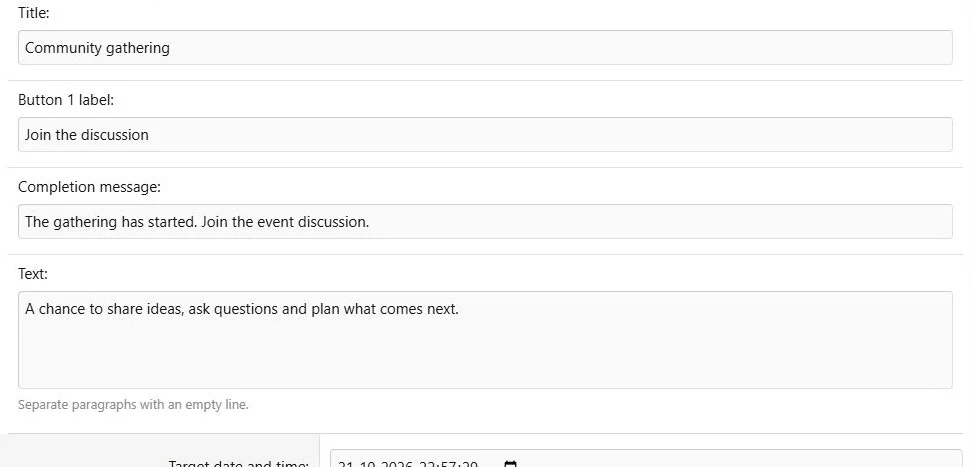
- Enter a title and optional description.
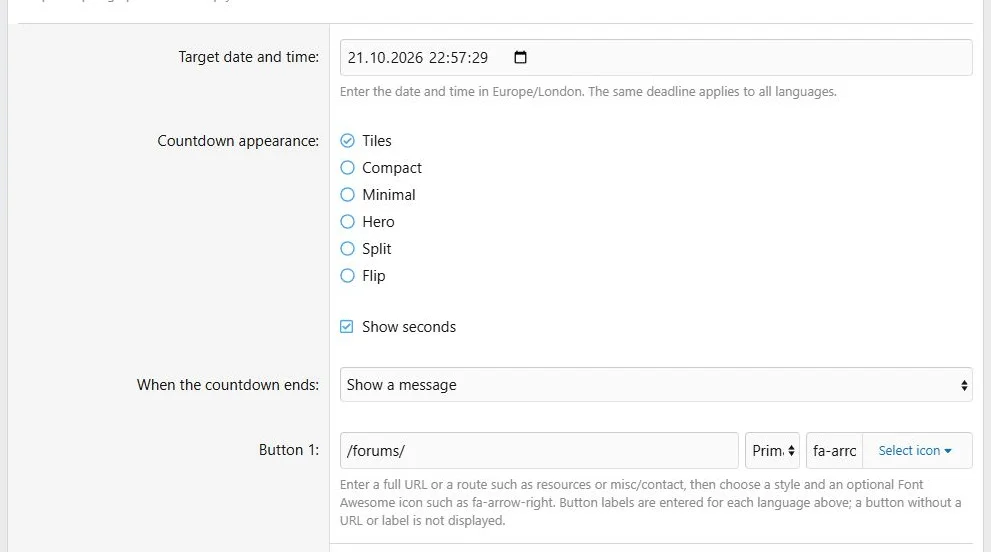
- Set the target date and time using the zone shown by the form.
- Choose Tiles, Compact, Minimal, Hero, Split or Flip appearance.
- Choose whether to display seconds.
- Select the expiry action: show a completion message or hide the block.
- If using a message, enter the required completion text.
- Optionally configure one action button and save.
Choose a deadline, appearance and behavior after expiry.
Additional presentation and behavior settings.
Expiry and publication
The timer and the page schedule are independent. An expired timer can show a message while its page stays published. A page end date can make the entire page unavailable before visitors see that message.
Choose Hide only when the section should disappear after the target. The block is also hidden on a later page load when its deadline has passed and Hide is selected.
Translations and responsive review
Translate the title, description, button label and completion message. The deadline, appearance and destination URL are shared.
Check long event titles and completion messages at phone width. Keep the configured time zone consistent with the date visitors are told elsewhere.
Example
Count down to a community gathering and then display
The gathering has started. Join the event discussion.
The same countdown switches from remaining time to a completion message.
The completion state after the countdown deadline.



![[XB] Page Builder: Visual Constructor for Custom & Landing Page](/data/resource_icons/0/398.jpg?1792180696)