Block reference
Use Feature card for a brief benefit, service or navigation destination.
Configure
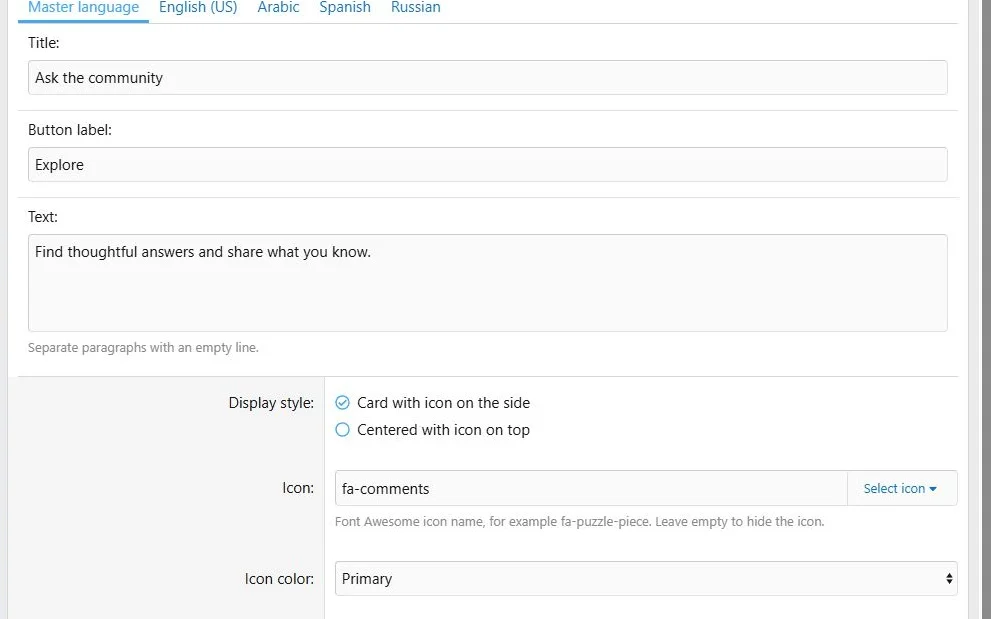
- Choose Add block > Feature card.
- Enter the required title and optional description.
- Choose Card or Centered presentation.
- Select an icon with the Core Library picker or enter its Font Awesome class.
- Choose Primary, Success or Plain icon color.
- Optionally add one button destination, style, icon and translated label.
- Save.
The description is plain text. Separate paragraphs with a blank line.
Feature cards combine short text, an icon and an optional action.
Additional presentation and behavior settings.
Translations and layout
Translate the title, description and button label. Icon, color, presentation and button URL are shared settings.
For three equal cards, place one in each 4/12 desktop column and use 12/12 narrow widths. Use row Stretch alignment when the design calls for equal-height columns. Review translated text lengths.
Example
Create cards for
Ask the community,
Explore resources and
Get started, each linking to the matching destination.
Feature cards provide a compact overview of community destinations.



![[XB] Page Builder: Visual Constructor for Custom & Landing Page](/data/resource_icons/0/398.jpg?1792180696)