Documentation home
Open a page title in
Communication > Page builder.
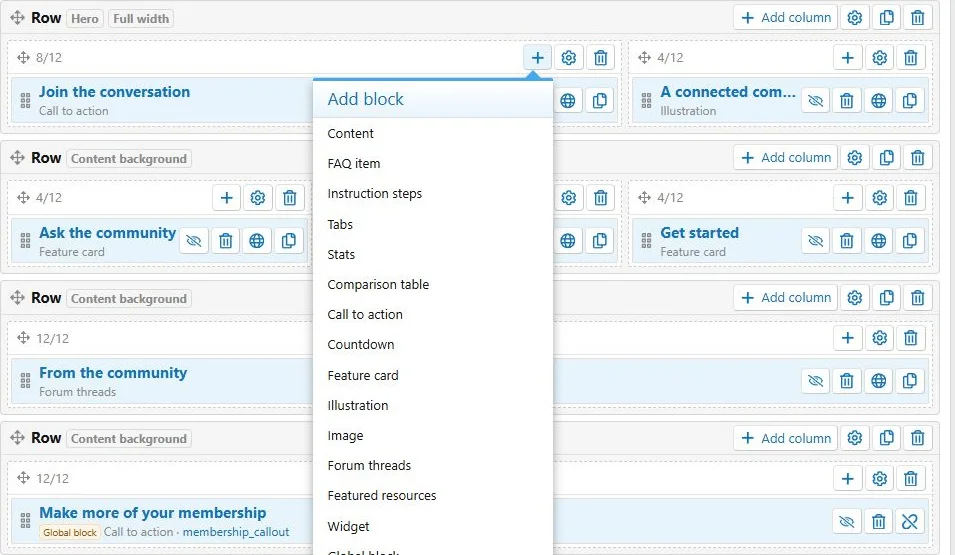
Rows, columns and blocks
- Click Add row to create a section with its first column.
- Use Add column in that row when you need additional columns.
- Open the column's Add block menu and choose a content type.
- Complete the block form and save.
The builder represents structure and ordering. Use
View to inspect the actual frontend rendering.
Rows contain columns, and columns contain selectable content blocks.
Ordering
Use the drag handles to reorder rows, move columns within or between rows, and move blocks within or between columns on the current page. Layout ordering saves automatically after a successful move. Text and settings forms still need their own
Save action.
Reload the builder after a move if you need to confirm the saved structure.
Column widths
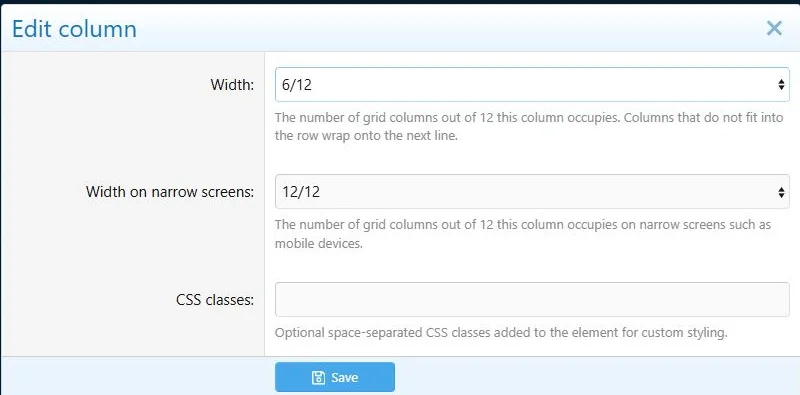
The grid has 12 units:
| Arrangement | Desktop widths | Narrow-screen widths |
|---|
| One content column | 12/12 | 12/12 |
| Two equal columns | 6/12 + 6/12 | 12/12 + 12/12 |
| Text and smaller media | 8/12 + 4/12 | 12/12 + 12/12 |
| Three feature cards | 4/12 + 4/12 + 4/12 | 12/12 each |
Auto provides flexible equal-width columns. Narrow-screen width is a separate setting and defaults to full width. Configure it deliberately when you want columns to remain side by side.
A half-width desktop column can occupy the full width on phones.
Row settings
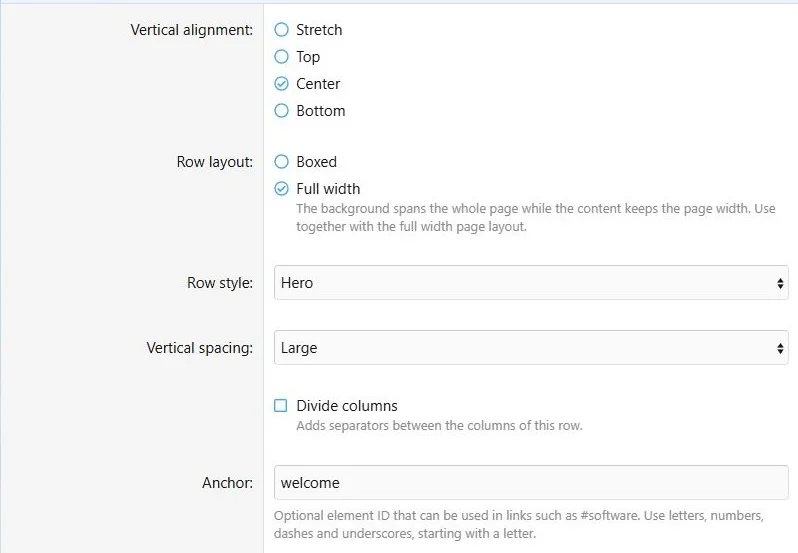
| Setting | Effect |
|---|
| Vertical alignment | Stretch, top, center or bottom alignment of columns |
| Row layout | Boxed or full-width section background |
| Style | None, Content, Page or Hero |
| Spacing | None, Small, Medium or Large vertical spacing |
| Divide columns | Adds separation between columns |
| Anchor | A fragment target for direct links |
| CSS classes | Custom classes for this row |
| Enabled and schedule | Availability of the entire row |
For a full landing page, consider both the page layout and row layout. See
Appearance.
Row settings control alignment, section appearance and availability.
Anchors
Use an anchor such as
getting-started, then link to
custom-pages/community-guide/#getting-started. Enter the anchor without the hash. Start with a letter and use letters, numbers, hyphens or underscores. Give sections and blocks distinct anchors on a page.
Copying and removing structure
Rows and blocks have duplicate actions. A row copy includes its columns and blocks. Copies receive unique anchors. A copied global placement still uses its shared source; use
Detach when you need independent content.
Deleting a row removes its columns and blocks. Deleting a column removes its blocks. Check the containing structure before confirming deletion.
Check narrow screens
Open the public page at approximately 390 px wide and then at desktop width. Check reading order, wrapped headings, buttons, dividers and embedded content. Widget templates and custom HTML can need their own layout adjustments.

![[XB] Page Builder: Visual Constructor for Custom & Landing Page](/data/resource_icons/0/398.jpg?1792180696)