Documentation home
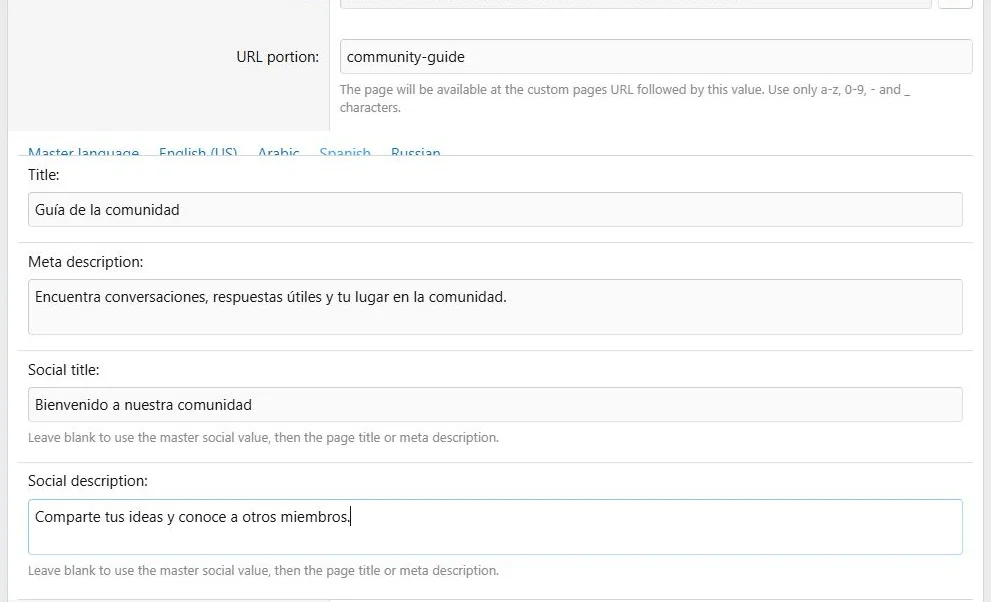
One page layout can serve multiple XenForo languages. Language tabs contain text and supported language-specific images; the row and column structure stays shared.
Add translated content
- Complete the master content first.
- Open a language tab in the page or block editor.
- Enter the translated fields.
- Save and switch the public site's language to inspect the result.
Languages come from the site's XenForo language configuration. The master content tab is the fallback content, not a separate visitor language.
Translate page text while keeping one shared page layout.
Fallback rules
| Content | What happens when a translation is missing |
|---|
| Page title and meta description | The individual field uses its master value |
| Social title and description | Uses master social text, then the ordinary page text |
| Ordinary block title, body and extra text | Missing fields use master content |
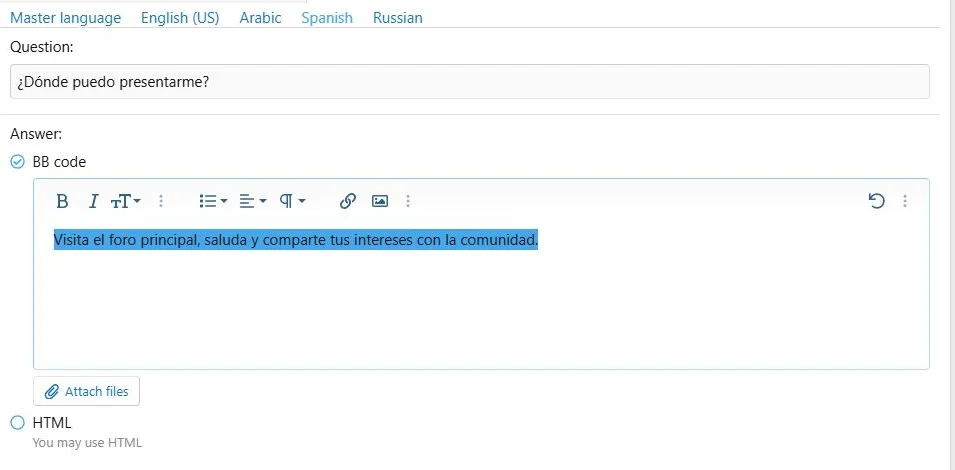
| FAQ | Requires a complete translated question and answer, or uses the complete master pair |
| Tab item | An empty translated item uses the complete master item; a partial pair is invalid |
| Instruction step | An empty translated item uses the complete master item; required translated fields must be complete |
| Stats counter | An empty translated counter uses the master label and surrounding text; a non-empty translation requires a label |
| Image | Uses the master file when no translated file is present |
For image alt text and captions, a translated image uses the text from its own language entry. When the image falls back to the master file, separately entered translated alt text and caption can still be used, with master fallback for empty fields.
Shared settings
Column widths, row styles, schedules, button destinations and most block options are shared across languages. Translate button labels in the language content fields; changing a button URL changes it for all languages.
Tabs, steps, statistics and comparison tables share their item structure and ordering. Translate each item in its corresponding language tab. Reordering an item retains its associated translations.
A practical review
Use a guide containing a content block, FAQ and two tabs. Translate one complete tab and leave the other empty. Check that the public page shows the translation for the first and the complete master item for the second.
Translate FAQ questions and answers as complete pairs.
Transferring languages
Imports match translations to languages on the destination site using language codes and, where needed, titles. Unmatched languages are skipped; ambiguous matches can reject an import. Configure the required languages before importing. There is no manual language-mapping screen in the import form.
See
Import and export.

![[XB] Page Builder: Visual Constructor for Custom & Landing Page](/data/resource_icons/0/398.jpg?1792180696)