
![[XB] Sticky Conversations](/data/resource_icons/0/159.jpg?1732744089)
- Xenforo.com resource URL
- https://xenforo.com/community/resources/xb-sticky-conversations.9379/
- Compatibile XF2 versions
- 2.3
Pin important XenForo conversations so they stay easy to find in your inbox.
Sticky Conversations gives permitted users a dedicated pinned section, quick pinning controls, manual ordering, and optional temporary pins that expire automatically.
Features:
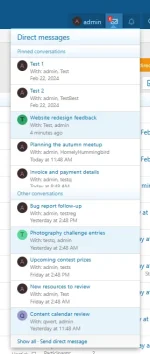
 Pinned Conversation Section: Keep pinned conversations together at the top of the first inbox page.
 Quick Pin and Unpin Controls: Change a conversation's pinned state from the conversation page or directly from the conversation list.
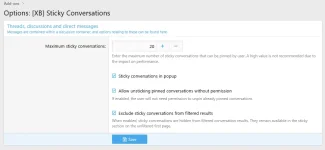
 Conversation Popup Support: Optionally show pinned conversations separately in the XenForo conversations popup.
 Drag-and-Drop Ordering: Let permitted users arrange their pinned conversations in a custom order shared by the inbox and popup.
 Temporary Conversation Pins: Pin a conversation until a chosen date or for a selected number of days, then unpin it automatically.
 Collapsible Pinned Section: Allow users to collapse the pinned conversation block and remember its state on the current device.
 Configurable Pin Limits: Set a global maximum and override the limit for individual user groups.
 Inline Moderation Actions: Pin or unpin multiple selected conversations with XenForo's inline moderation controls.
 Clear Filtered Results: Keep pinned conversations in their dedicated section instead of duplicating them in filtered inbox results.
 Style Controls: Configure whether the pinned section can collapse and set the maximum height of the pinned conversation popup.
Permissions:
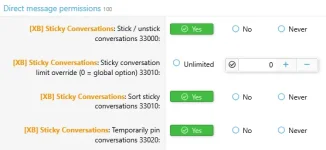
 Stick or Unstick Conversations: Choose which user groups can manage pinned conversations.
 Temporarily Pin Conversations: Control access to date-based and duration-based pins.
- Sort Sticky Conversations: Allow selected user groups to reorder pinned conversations.
- Sticky Conversation Limit Override: Give a user group its own pin limit or let it use the global setting.
 Permission-Free Unpinning: Optionally allow users to unpin their existing conversations even when they no longer have permission to create new pins.
Useful for:
 Staff Coordination: Keep important private discussions and ongoing tasks at the top of the inbox.
 Customer Support: Pin active support conversations until each case is resolved.
 Time-Sensitive Follow-Ups: Use temporary pins for conversations that only need attention until a deadline.
 Busy Inboxes: Organize frequently used conversations and control their display order.
Screenshots:
-
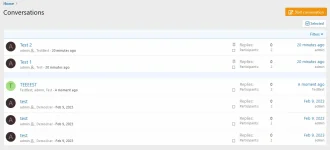 conversation_list.webp
 -
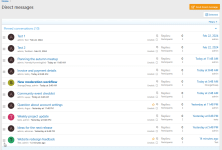 conversation_list_sort.gif
 -
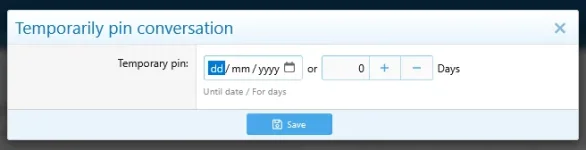 conversation_pin_temp.webp
 -
 conversation_view_buttons.webp
 -
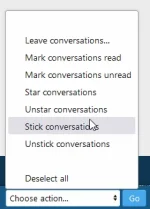 inline_mod.webp
 -
 options.webp
 -
 permissions.webp
 -
 popup.webp

![[XB] Thread Ratings](/data/resource_icons/0/170.jpg?1733429063)
![[XB] Guide Threads: Structured How-To Guides & Tutorials](/data/resource_icons/0/374.jpg?1789241570)
![[XB] Frequently Asked Questions](/data/resource_icons/0/94.jpg?1732483812)
![[XB] Rating Competition Threads](/data/resource_icons/0/123.jpg?1732559740)
![[XB] Daily Rewards: Events, Campaigns & Recurring Rewards](/data/resource_icons/0/26.jpg?1790110423)