Block reference
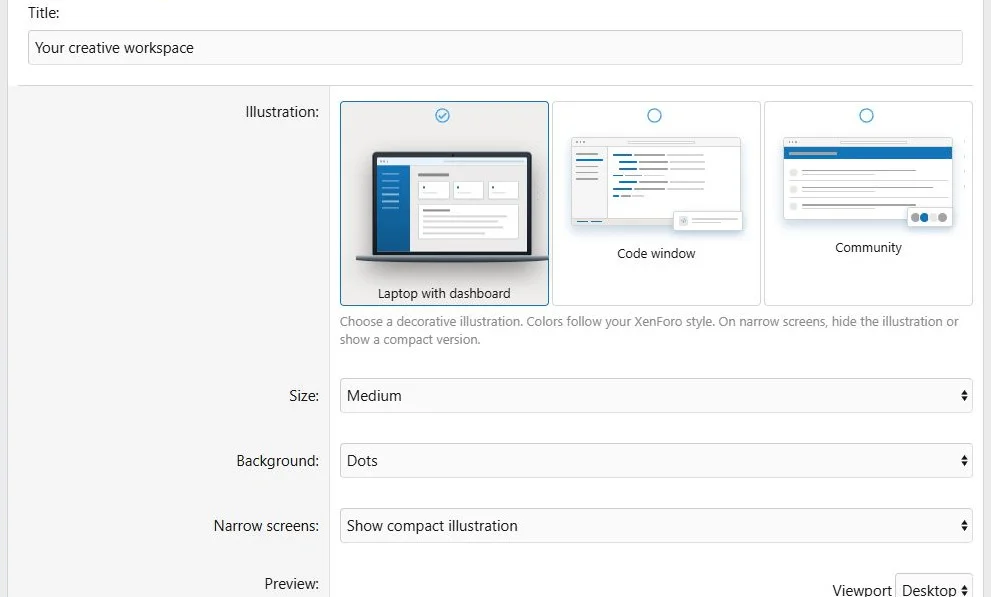
Use Illustration for built-in decorative artwork beside a CTA or guide introduction. It does not display live dashboard data.
Configure
- Choose Add block > Illustration.
- Choose Dashboard, Code window or Community.
- Set Small, Medium or Large size.
- Choose Auto, None, Dots or Glow background.
- Set narrow-screen behavior to Hide or Compact.
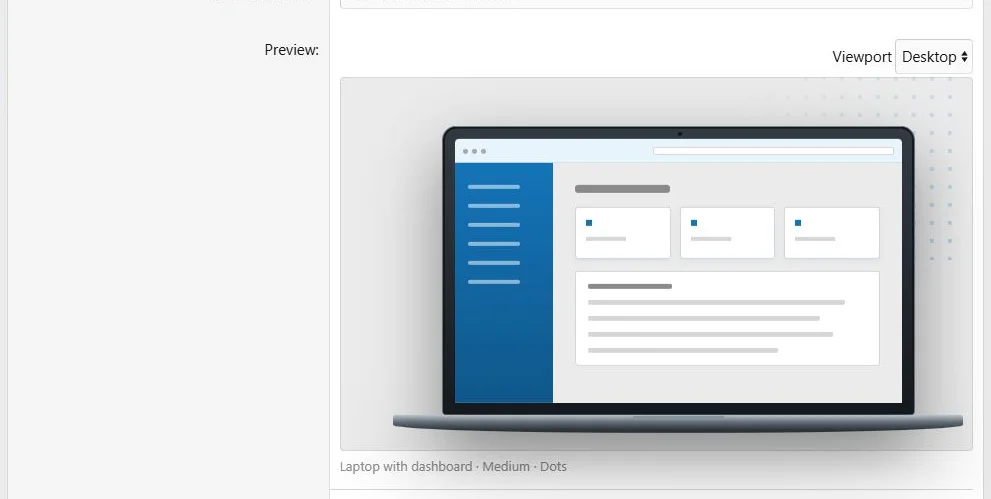
- Inspect the live ACP preview and save.
Illustration presets provide decorative artwork without an upload.
Live preview of the selected illustration.
Presentation
The options are shared across languages. Preset artwork is decorative rather than a substitute for translated explanatory content.
Hide removes the illustration on narrow screens. Compact keeps a smaller version. Review it next to the actual text rather than choosing size from the preview alone.
Example
Place a Community illustration beside a welcome CTA in a two-column Hero row. Use Compact if the artwork should remain on phones.
Decorative illustrations can complement an introduction on desktop and phones.
The same content at a phone viewport width of 390 pixels.



![[XB] Page Builder: Visual Constructor for Custom & Landing Page](/data/resource_icons/0/398.jpg?1792180696)