Block reference
Use Image for an uploaded photograph, product screenshot or other content image. Use
Illustration for built-in decorative presets.
Configure
- Choose Add block > Image.
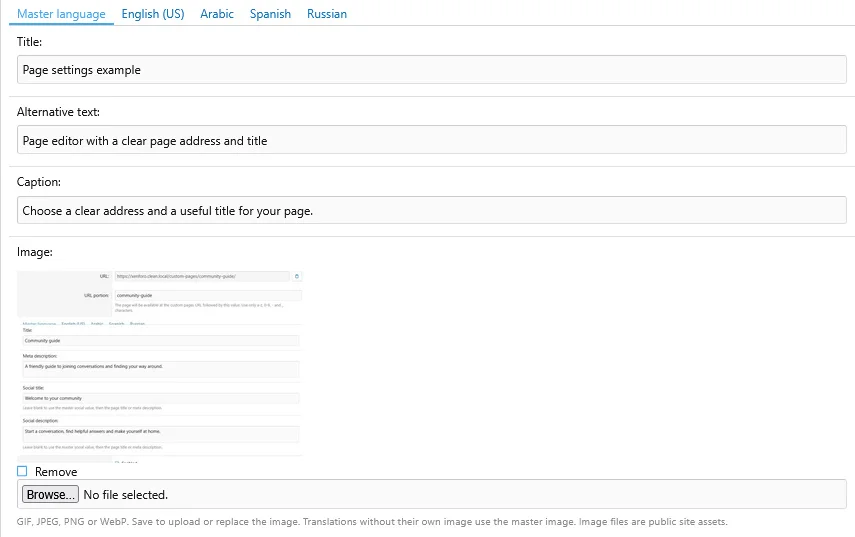
- Upload the image in the master content tab.
- Enter alternative text and an optional caption.
- Choose left, center or right alignment.
- Set a maximum width in pixels, or use 0 for the available full width.
- Decide whether to hide the image on narrow screens and save.
Supported upload formats are GIF, JPEG, PNG and WebP. Maximum width can be set from 0 to 3840 pixels. The image still needs to fit the available column.
Image settings combine an upload, accessible text and size controls.
Additional presentation and behavior settings.
Language-specific images
Upload a different image in another language tab when the image itself contains localized text. Remove a language image with its Remove control and save; the master image then provides the file fallback.
A translated image uses its language entry's alt text and caption. Without a translated file, the master file is used and text can fall back separately.
Read
Translations before mixing translated images and captions.
Mobile and transfers
Use a 12/12 narrow-screen column and keep hiding disabled when the image carries essential information. Hiding is useful for decorative companion images.
ZIP exports include uploaded files; XML does not. Copies receive independent image files. An Image block without an available file does not render its image.
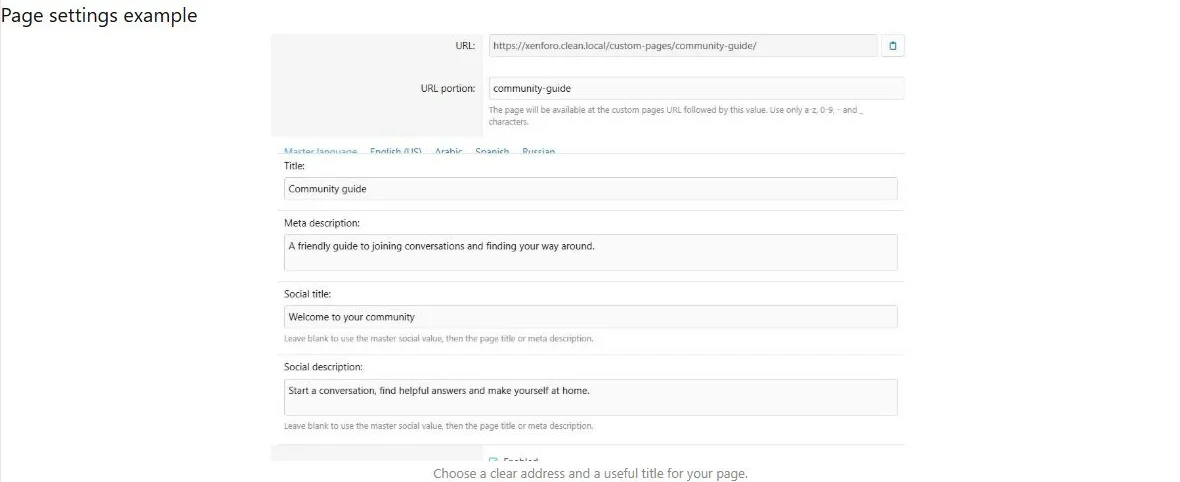
Images fit their column while respecting the configured maximum width.
The same content at a phone viewport width of 390 pixels.


![[XB] Page Builder: Visual Constructor for Custom & Landing Page](/data/resource_icons/0/398.jpg?1792180696)