Documentation home
These examples use existing blocks and settings. Replace sample links with destinations from your site.
Community landing page
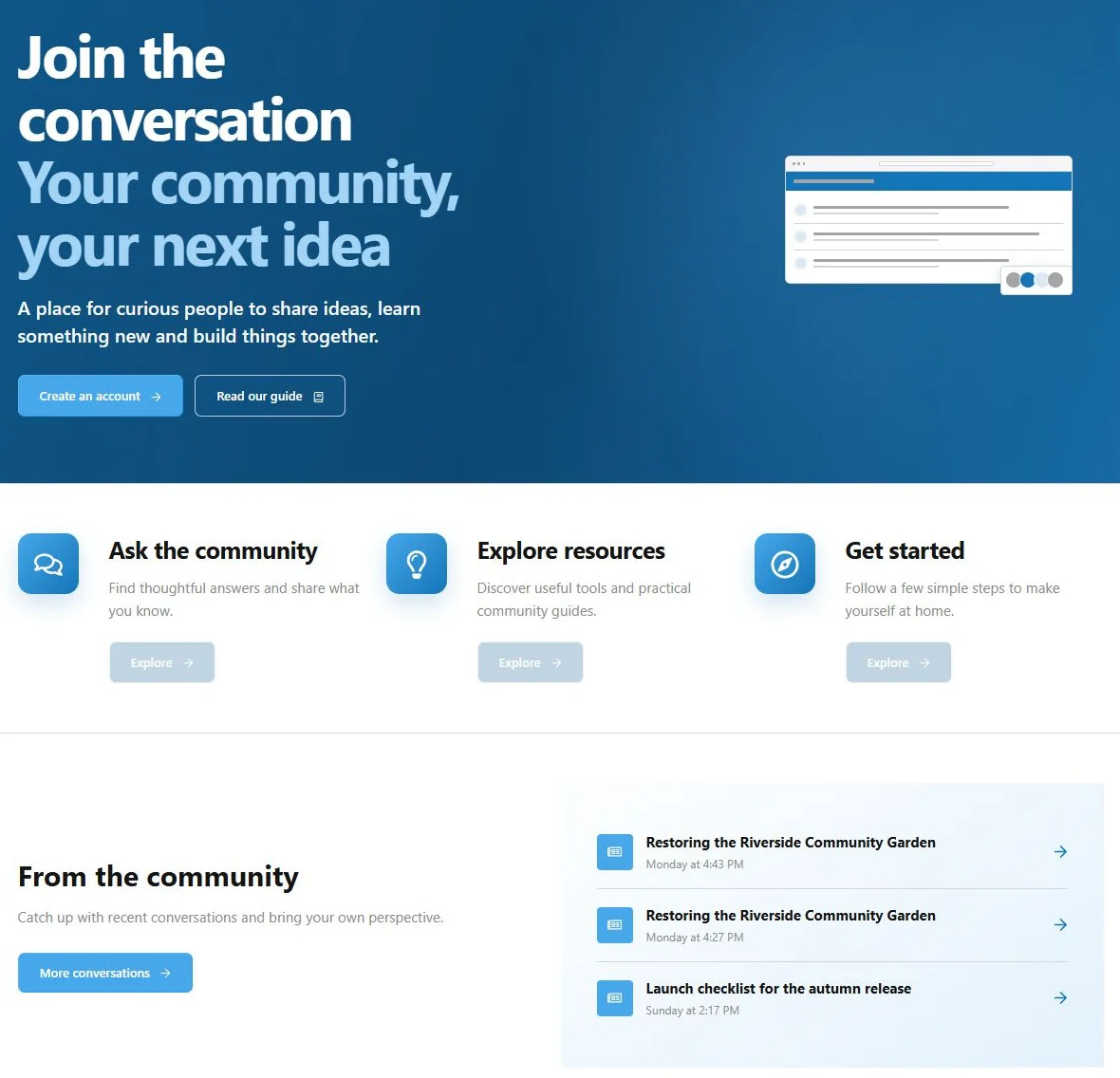
- Create a page with the Full width layout.
- Add a Hero row with Large spacing and centered vertical alignment.
- Use an 8/12 column for a Hero Call to action and a 4/12 column for an Illustration.
- Set both columns to 12/12 on narrow screens.
- Add a second row with three 4/12 columns, each containing a Feature card.
- Add a Forum threads section connected to your announcements forum.
- Finish with FAQ items in a 12/12 column.
- Check that the main buttons lead to registration, rules or another useful destination.
For a layout with fewer phone sections, set the Illustration to hide on narrow screens.
A community landing page combines an introduction, feature links and recent discussions.
Getting-started guide
- Use the Default layout.
- Add a Content block introducing the guide.
- Add Instruction steps for account setup, introductions and posting.
- Add a row anchor such as first-post and link to it from the introduction.
- Add FAQs for common account questions.
- Translate the guide and verify the fallback for an untranslated item.
Use Vertical steps for a longer guide and Cards for a short overview.
Event or campaign page
- Create an enabled page with a publication start before the campaign begins.
- Add a CTA with a registration link.
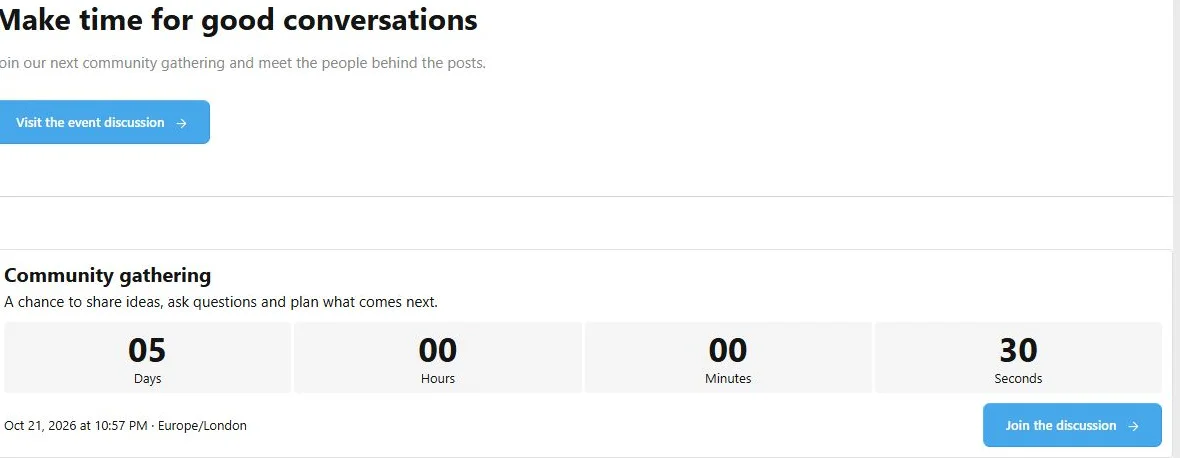
- Add a Countdown with the event deadline.
- Choose a translated completion message or hide the countdown at expiry.
- Give a promotional row its own end date if only that section should disappear.
- Add a page end date only if the whole page should become unavailable.
- Verify the time zone in both the schedule and countdown forms.
A countdown does not enable or disable the page. Keep the page published after expiry when visitors should see the completion message.
Countdown expiry can change the event section while the page remains available.
The completion state after the countdown deadline.
Membership comparison
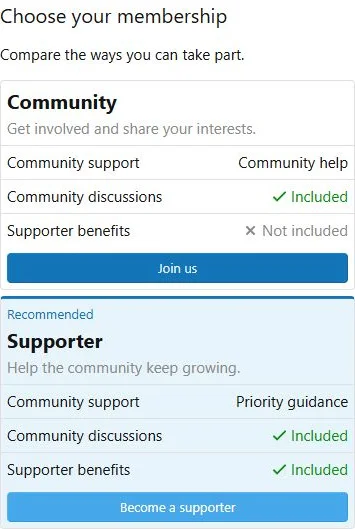
- Add a Comparison table with columns Community and Supporter.
- Add text rows for descriptions and availability rows for included features.
- Highlight Supporter and give its column a relevant action link.
- Choose Highlighted table or Cards appearance.
- For a table appearance, choose mobile Cards if phone readers should not scroll horizontally.
- Add an FAQ explaining the membership terms.
- If the same promotional CTA appears elsewhere, make it a global block.
This page explains plans and links to your existing purchase flow; the comparison block does not create a payment system.
Cards present membership options vertically on narrow screens.
Shared help message
Create a global Content block containing the support link, add it to two guides and edit the source once. Confirm that both guides update. Detach the placement on one guide when it needs custom wording.
See
Global blocks.


![[XB] Page Builder: Visual Constructor for Custom & Landing Page](/data/resource_icons/0/398.jpg?1792180696)