Documentation home
This walkthrough creates a simple guide with a welcome message and two questions.
1. Create the page
- Open Communication > Page builder in the ACP.
- Click Add page.
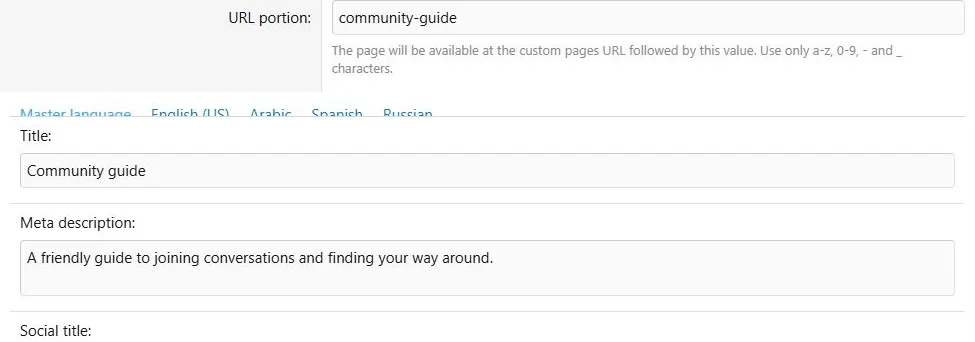
- Set URL portion to community-guide.
- In the master content tab, set Title to Community guide and enter a short meta description.
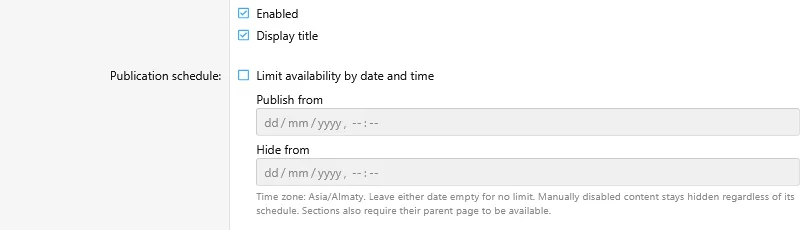
- Clear Enabled while you build. Leave the schedule off and user criteria empty for this example.
- Save. The layout builder opens.
Create the guide with a readable URL and master title.
Keep the page disabled while preparing its content.
2. Add a welcome section
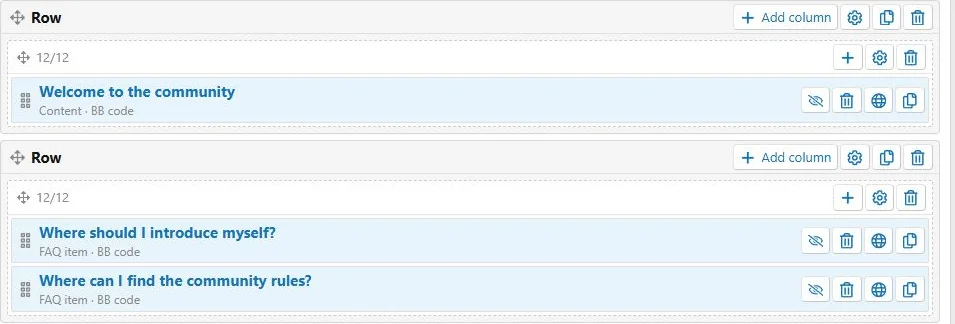
- Click Add row.
- Use the first column created automatically with the row. Use Add column only when you need another column.
- Open the column settings. Set its desktop width and narrow-screen width to 12/12, then save.
- Open the column's Add block menu and choose the BB code/HTML content block.
- Enter Welcome to the community as the title.
- Select BB code and enter a welcome paragraph with links to your rules and introduction forum.
- Keep the block enabled and save.
Use URLs from your own site for the example links.
3. Add the questions
- Add another row and set its automatically created column to 12/12.
- Add a FAQ block with the question Where should I introduce myself?
- Enter a complete answer and a link to your introduction forum.
- Save, then add a second FAQ for Where can I find the community rules?
- Leave one FAQ initially open and the other closed to compare the behavior.
Each FAQ block contains one question and answer.
The guide uses two rows with full-width content columns.
4. Publish and inspect
- Open page Settings, select Enabled and save.
- Click View.
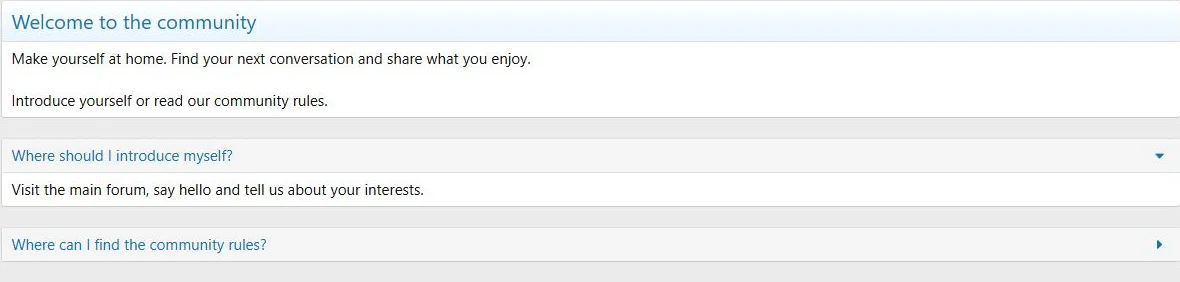
- Check the title, links and FAQ toggles.
- Inspect the page at a desktop width and a narrow phone width.
- Open it as a guest if it is intended to be public.
The View button opens the real public page. A disabled or scheduled page is not automatically available to an administrator.
The published Community guide combines a welcome section and expandable answers.
Next steps

![[XB] Page Builder: Visual Constructor for Custom & Landing Page](/data/resource_icons/0/398.jpg?1792180696)