
![[XB] Sensitive Content Guard: AI NSFW Detection & Moderation](/data/resource_icons/0/53.jpg?1781006561)
- Xenforo.com resource URL
- https://xenforo.com/community/resources/xb-adult-content-filter.8401/
- Compatibile XF2 versions
- 2.3
Detect, moderate, and restrict sensitive image and video uploads in XenForo using AI-powered content moderation.
Sensitive Content Guard helps administrators identify nudity, adult content, violence, graphic imagery, and other sensitive material before it reaches members. Connect Sightengine, DeepAI, Azure AI Content Safety, or Google SafeSearch to automatically analyze uploads, apply category-specific moderation rules, reject restricted content, and blur flagged attachments.
Configure different detection policies for forums, resource categories, and media galleries while controlling who can upload, view, or reveal sensitive content.
Features:
AI Detection & Moderation
 AI-Powered NSFW Detection: Automatically analyze uploaded images for nudity, adult content, and other supported sensitive categories.
 Multiple Detection Providers: Choose Sightengine, DeepAI, Azure AI Content Safety, or Google SafeSearch.
 Detection Profiles: Create multiple profiles with independent providers, API credentials, detection thresholds, and supported provider settings.
 Content-Specific Detection: Assign different detection profiles and moderation actions to individual content types.
 Multiple Detection Profiles: Run several profiles in sequence until one identifies restricted content.
 Sensitive Content Categories:Detect supported categories depending on the selected provider:
- Adult content and nudity
- Violence and graphic content
- Suggestive imagery
- Weapons
- Recreational drugs
- Alcohol and tobacco
- Hate and offensive imagery
- Self-harm
- Medical imagery
 Category-Based Moderation: Configure separate detection thresholds, upload restrictions, and display rules for supported sensitive content categories.
 Upload Actions: Allow, send for moderation, or reject uploads based on detected categories.
 Display Rules: Show content normally, display a warning, or conceal content according to the applicable category policy.
- Multiple Category Matches: Apply relevant rules when an uploaded image matches more than one sensitive content category.
 Video Detection: Check uploaded videos when supported by the selected provider and enabled for the content type.
 Sightengine Workflows: Use configured Sightengine workflows for additional provider-managed detection decisions.
Detection Rules & Locations
 Location-Specific Rules: Apply detection policies to selected forums, XenForo Resource Manager categories, and XenForo Media Gallery categories.
 Global Detection Rules: Configure default detection policies for supported content throughout the community.
 Local Policy Overrides: Replace global detection rules for specific locations without affecting unrelated areas.
- Rule Preview: Preview which detection profiles and rules apply to a selected destination before saving changes.
- Content Move Rechecks: Reevaluate affected content when it moves between locations with different detection policies.
 Upload Destination Validation: Check temporary attachments against the rules of their final publication destination.
 Manual Rechecks: Start additional detection checks when existing results are insufficient for the applicable policy.
Content Protection & Display
- Sensitive Upload Restrictions: Prevent unauthorized members from uploading content that matches restricted categories.
 Automatic Attachment Blurring: Blur flagged attachments embedded in forum content.
 NSFW BB Code: Manually mark sensitive content using [NSFW] BB code.
 Reveal Sensitive Content: Control which members can view or reveal flagged content.
 Sensitive Content Warnings: Display warnings for content matching configured sensitive categories.
 Member Preferences: Allow eligible members to disable NSFW blurring through their account preferences.
 Category-Specific Access: Configure separate viewing and upload permissions for additional sensitive content categories.
 Quote Protection: Prevent content inside [NSFW] tags from being included in quotes.
Detection Testing & Results
 Detection Profile Testing: Upload a test image to evaluate a detection profile before applying it to live content.
 Detection Results: Review detected, clear, and unavailable category results.
- Threshold Feedback: See which configured detection thresholds triggered a sensitive content verdict.
 Response Time Monitoring: Check how long detection requests take.
 Detailed Check Logs: Review content detection results and associated provider information.
- Provider Response Details: Inspect additional provider results when investigating detection behavior.
 Unavailable Result Handling: Distinguish missing detection data from content that was explicitly classified as safe.
API Usage & Performance
- API Request Limits: Configure daily and monthly detection request limits independently for each profile.
- Usage Monitoring: View consumed requests, remaining allowances, and upcoming reset times.
- Usage Warnings: Receive usage indicators when a detection profile approaches its configured limit.
 Quota Protection: Prevent additional requests through a profile when its configured allowance is exhausted.
 Detection Cache: Reuse existing analysis for identical files to reduce repeated API requests.
- Cached Result Reuse: Reevaluate applicable rules using stored analysis when possible without making another provider request.
 Provider Monitoring: Track detection requests, cache hits, response times, verdicts, and failures.
 Provider Health: Monitor detection service performance using configurable health thresholds.
 Monitoring History Retention: Configure how long provider monitoring history is retained.
Administration
- Centralized ACP Management: Manage detection profiles, content scopes, provider monitoring, check logs, and options from a dedicated administration section.
- Flexible Detection Policies: Configure different detection and moderation behavior for supported upload locations.
- Detection Logs: Review flagged uploads, detection outcomes, and unavailable results.
- Detection Maintenance: Recheck affected records when policies or content locations change.
Supported Content Types:
- Avatars & Profile Banners: Detect sensitive images uploaded as member avatars or profile banners.
 Forum Posts: Analyze uploaded post attachments.
 Conversations: Check attachments uploaded to direct messages.
 Profile Posts & Comments: Analyze attachments in member profile content.
 XenForo Resource Manager: Check resource icons and resource update attachments.
- XenForo Media Gallery: Analyze uploaded media attachments, including supported video content.
Supported AI Providers:
- Sightengine: Detect adult content, violence, graphic imagery, weapons, recreational drugs, alcohol, tobacco, offensive imagery, and other supported categories. Supports configurable detection workflows.
- DeepAI: Detect adult and NSFW content.
- Azure AI Content Safety: Analyze adult, violence, hate, and self-harm categories using configurable severity thresholds.
- Google SafeSearch: Analyze adult, violence, suggestive, and medical imagery using configurable likelihood thresholds.
Permissions:
- View NSFW Content: Control which members can view or reveal content flagged as NSFW.
- View Additional Sensitive Categories: Independently control access to content flagged under supported categories other than adult content.
- Bypass Sensitive Upload Restrictions: Allow selected members to bypass configured upload restrictions for additional sensitive categories.
- Upload NSFW Avatars & Banners: Control who can upload flagged member images.
- Upload NSFW Attachments: Configure upload permissions independently for supported content areas, including posts and conversations.
Requirements:
 XenForo 2.3.0+
 Detection Provider Credentials: Automatic AI detection requires valid credentials for Sightengine, DeepAI, Azure AI Content Safety, or Google SafeSearch.
Useful for:
- Community Safety: Reduce exposure to inappropriate uploads before they become visible to members.
 Family-Friendly Communities: Apply stricter policies to keep adult and graphic imagery out of general discussion areas.
- Mixed-Audience Forums: Allow sensitive material in designated areas while restricting or concealing it elsewhere.
 Moderation Workflows: Send questionable uploads for staff review instead of automatically rejecting every flagged file.
- Different Content Policies: Apply stricter rules to public profiles and general forums while allowing different thresholds in designated categories.
- Moderation Cost Management: Monitor detection provider usage and reduce unnecessary API requests through caching and quotas.
FAQ:
 Can Sensitive Content Guard automatically detect NSFW images?
Yes. The add-on uses supported AI detection providers to analyze uploaded images and identify nudity, adult content, and other configured sensitive categories.- Which sensitive content categories can be detected?
Available categories depend on the selected provider. Sightengine supports several adult, violence, graphic, weapon, substance, and offensive imagery categories. Azure AI Content Safety supports adult, violence, hate, and self-harm detection. Google SafeSearch supports adult, violence, suggestive, and medical categories. DeepAI supports adult content detection. - Can sensitive uploads be rejected automatically?
Yes. Category rules can allow, moderate, or reject uploads depending on the detection results and configured policy. - Can NSFW attachments be blurred instead of removed?
Yes. Flagged attachments can be blurred when embedded in content, with permissions controlling who can reveal them. - Does blurring replace content access permissions?
No. Blurring controls how embedded flagged attachments appear. Viewing permissions determine who can reveal restricted content. - Can different forums use different NSFW detection rules?
Yes. Administrators can configure location-specific detection policies for forums, Resource Manager categories, and Media Gallery categories. - Can multiple AI detection providers be used?
Yes. Multiple detection profiles can be configured and applied in sequence according to the content scope. - Can I test detection settings before enabling them?
Yes. Save a detection profile, then upload a test image from its edit page to review the verdict, response time, and triggered thresholds. Tests consume the profile's configured API request allowance. - Does every provider support video detection?
No. Video detection depends on provider capabilities and must be enabled for the relevant content type. - Can I limit the number of AI detection requests?
Yes. Daily and monthly request limits can be configured independently for each detection profile. - Are identical images checked repeatedly?
Existing cached analysis can be reused for identical files, reducing unnecessary detection requests. - Can members manually mark content as NSFW?
Yes. The [NSFW] BB code can be used to mark and blur supported content manually.
Initial Setup:
1. Create a Detection Profile
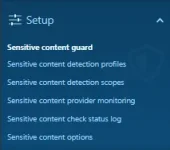
- Go to Setup → Sensitive content guard → Sensitive content detection profiles
- Create a profile and select a provider: Sightengine, DeepAI, Azure AI Content Safety, or Google SafeSearch
- Enter the required API credentials
- Select supported detection categories and configure their thresholds
- Set daily and monthly request limits (0 for unlimited)
- Enable and save the profile
2. Test the Profile
- Open the saved profile and select a test image
- Click Run test to check detection results and provider errors
- Adjust thresholds if necessary and save any changes
- Profile tests count toward the configured request limits
3. Create a Detection Scope
- Go to Sensitive content detection scopes and create a scope
- Select the detection profile and content type (attachments, avatars, or profile banners)
- Choose All locations or Selected locations, where supported
- Set the default upload action: None, Move to approval queue, or Reject upload
- Configure Display order if multiple profiles apply
- Enable video checking if required and supported
- Keep in mind that selected locations do not automatically include child locations, and matching local scopes override global scopes
4. Configure Category Rules
- Expand Category rules and enable the categories you want to handle separately
- Set an upload action for each category
- Choose a display mode: Display normally, Display with a warning, or Hide until revealed
- Leave category rules disabled to use the default NSFW policy
- Use Rule preview to check which profiles and rules apply
- Enable and save the scope
5. Configure Member Permissions
- Go to Groups & permissions → User group permissions
- Configure who can view or reveal sensitive content
- Set permissions for uploading NSFW attachments and member images
- Configure restrictions and bypass permissions for additional sensitive categories
- Verify permissions for regular members and staff
6. Review General Options
- Open Sensitive content options
- Configure attachment blurring, age checks, and confirmation prompts
- Review rejected-file retention, detection caching, and provider monitoring settings
7. Verify Detection
- Upload test images to each configured content area
- Confirm that upload restrictions and display rules work as expected
- Test locations inside and outside any selected scopes
- Check Sensitive content check status log for detection results and errors
- Review Sensitive content provider monitoring for request usage and failures
Screenshots:
Detection Profiles & Scopes:
Manage provider profiles and configure detection result caching. |
Configure a Sightengine profile with credentials, analysis categories, thresholds and workflow settings. |
Review detection scopes grouped by content type, with their actions and processing order. |
Assign a detection profile to a content type and choose its default upload action, display order and video check setting. |
Administration & Moderation:
Configure attachment blurring, rejected-file retention, age checks and confirmation prompts. |
Set detection cache lifetime, provider health thresholds and monitoring history retention. |
Control viewing and unsafe upload permissions for supported content areas. |
Review content check records, safety verdicts and links to attachments and detection details. |
Upload Restrictions:
Flagged attachments display an upload restriction message in the message editor. |
An unsafe avatar upload is rejected when the member lacks the required upload permission. |
An unsafe profile banner upload is rejected when the member lacks the required upload permission. |
Blurred Content & Viewing Controls:
An embedded attachment remains blurred when the viewer lacks permission to reveal it. |
An age warning explains why sensitive content is hidden from the viewer. |
The blurred attachment includes controls for revealing content and editing viewing preferences. |
Conversation Confirmations:
Ask members to confirm a message containing flagged uploads before sending it. |
Warn members before opening a conversation page containing sensitive attachments. |
Member Preferences:
Eligible members can choose to display adult content and limit automatic display to members they follow. |


![[XB] Permission Changes](/data/resource_icons/0/397.jpg?1792096003)
![[XB] Phrase Translator: AI Language & Phrase Translation](/data/resource_icons/0/396.jpg?1792094865)
![[XB] Game Threads: Video Game Database & Gaming Discussion](/data/resource_icons/0/165.jpg?1734440566)
![[XB] Tierlist Threads: Tier Lists & Community Rankings](/data/resource_icons/0/375.jpg?1789394739)
![[XB] Account Switcher: Login as User & Multiple Accounts](/data/resource_icons/0/372.jpg?1789019576)